 REF CLIPS
1
Pick your game
Sign in with your Referee Tracker account: your games are already there. Add the video, a file or a Drive, Dropbox or WeTransfer link.
Type a call, the clip is ready. REF CLIPS cuts your game moments, sorts them by theme and prepares your PDF report. Draw on the frame, review every call up close: your game becomes a real video session.
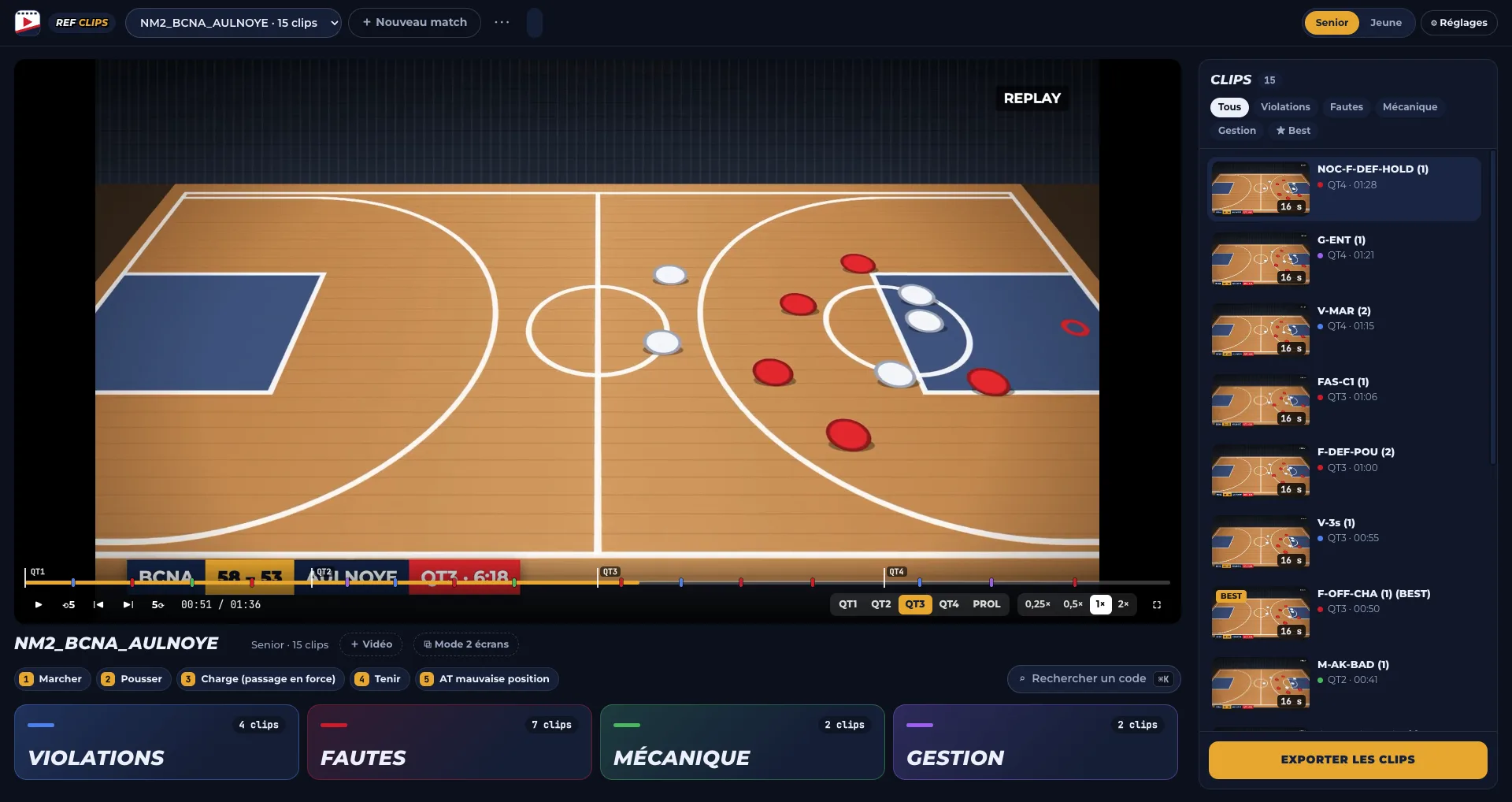
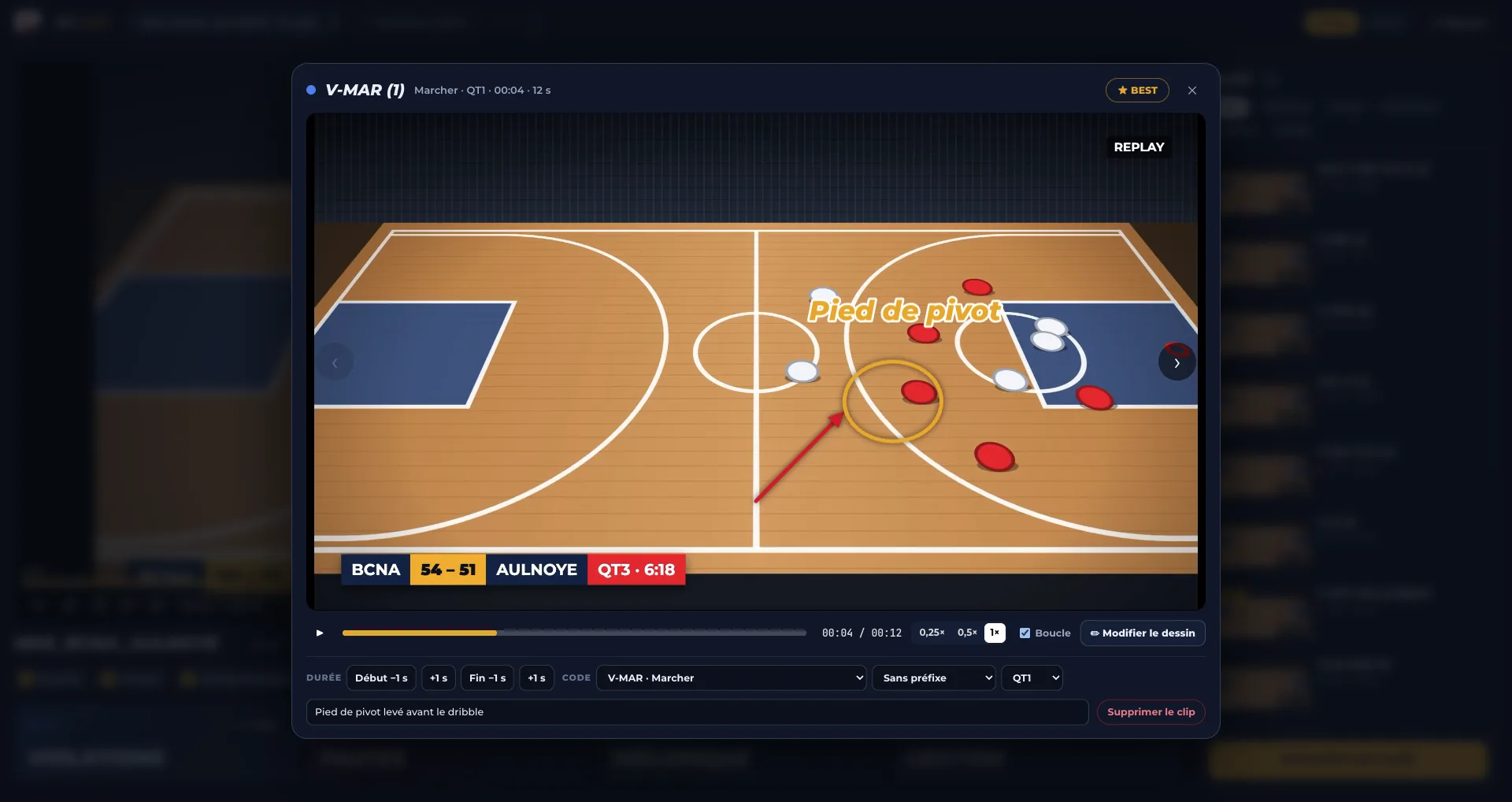
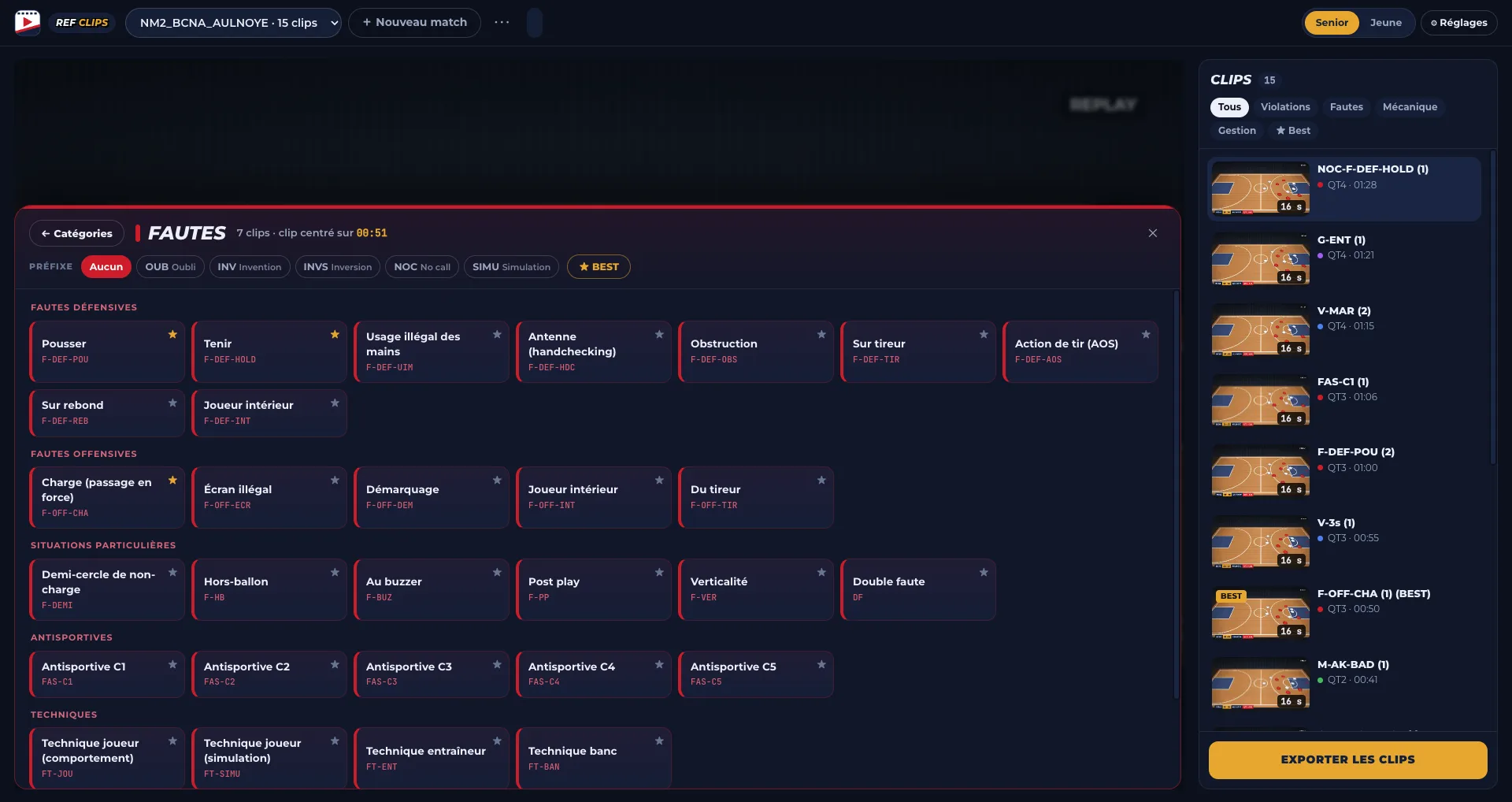
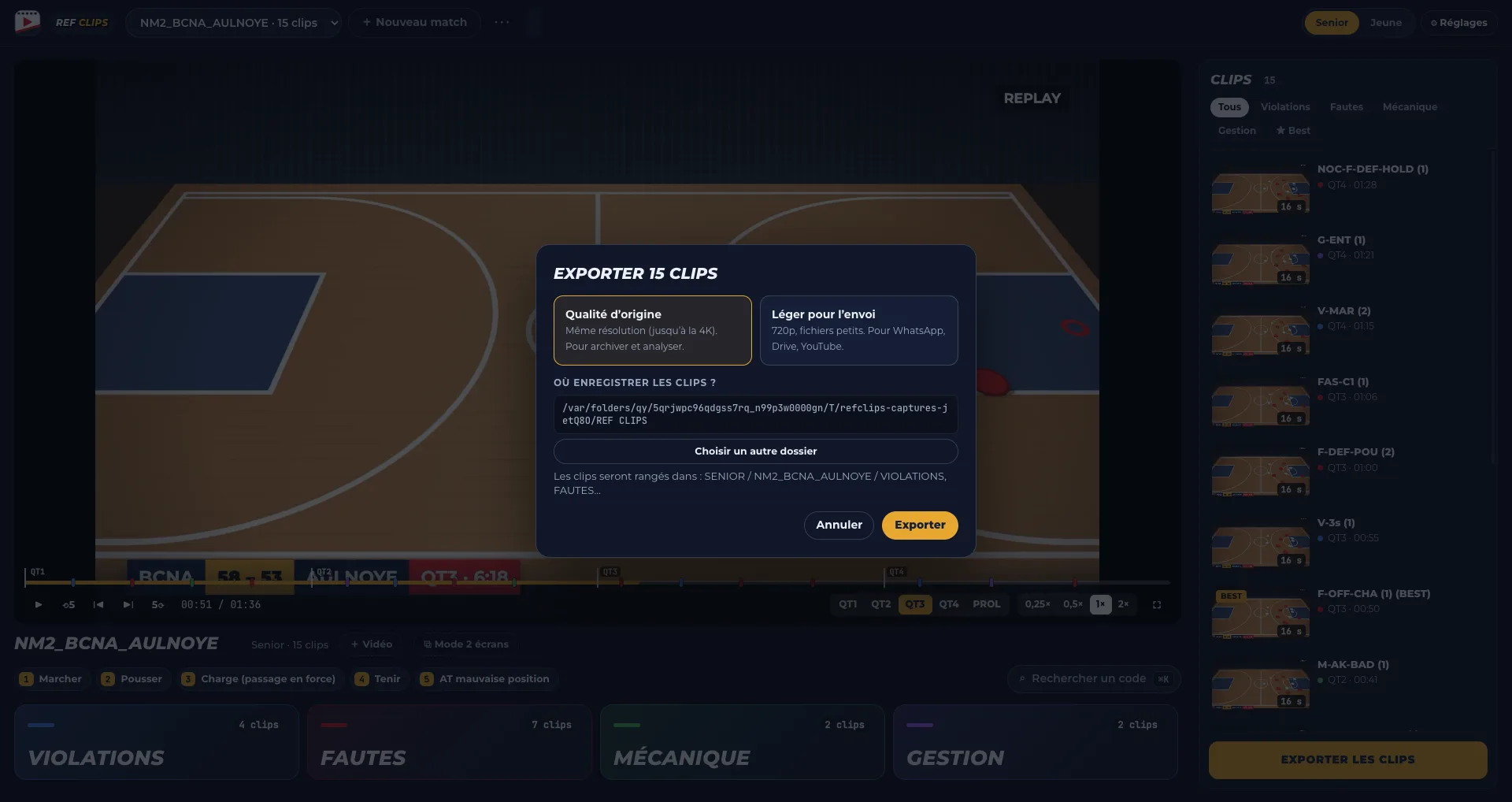
Real REF CLIPS screens (made-up game; the app is shown in French). Pick a tab or let it play.
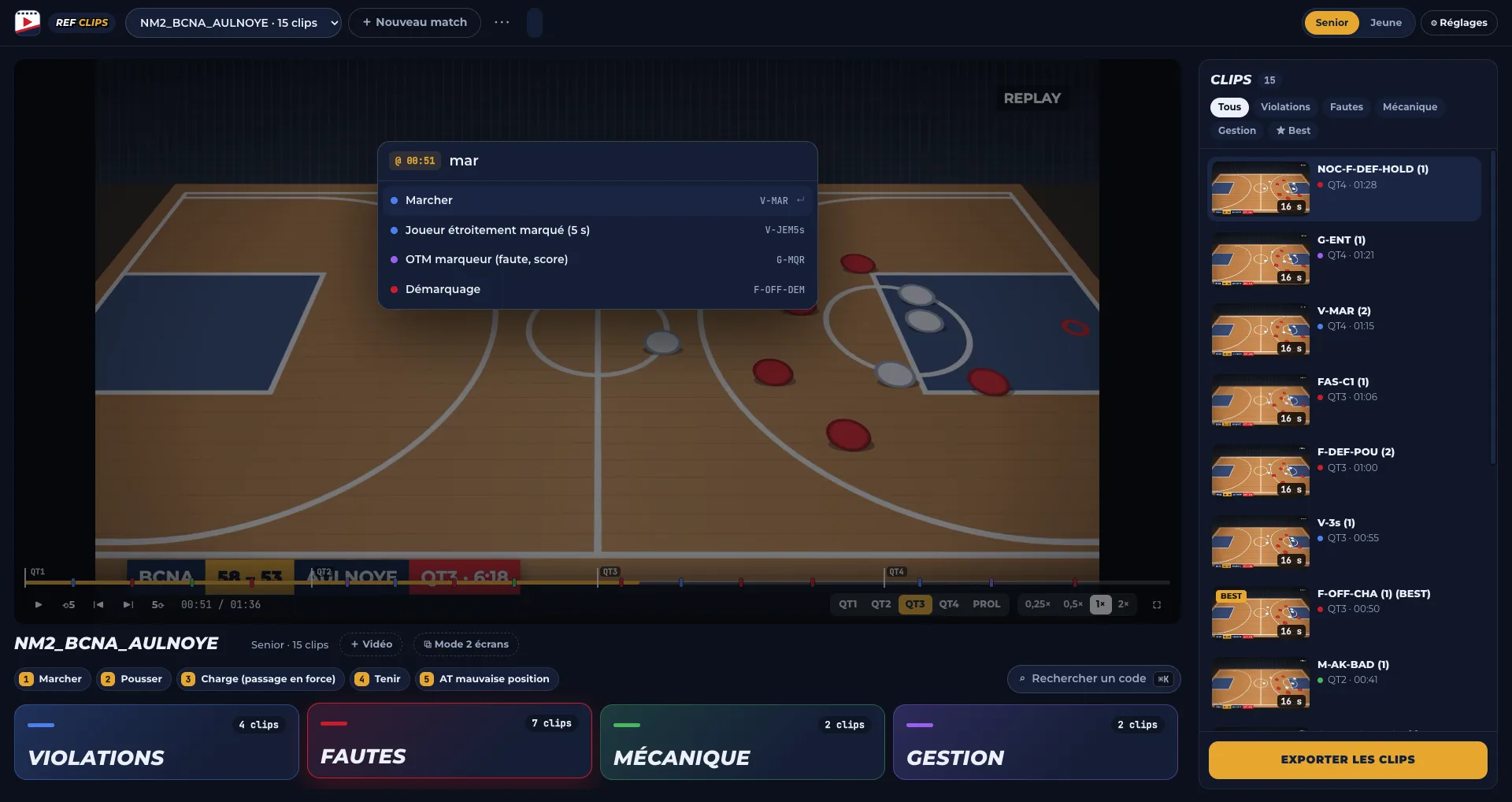
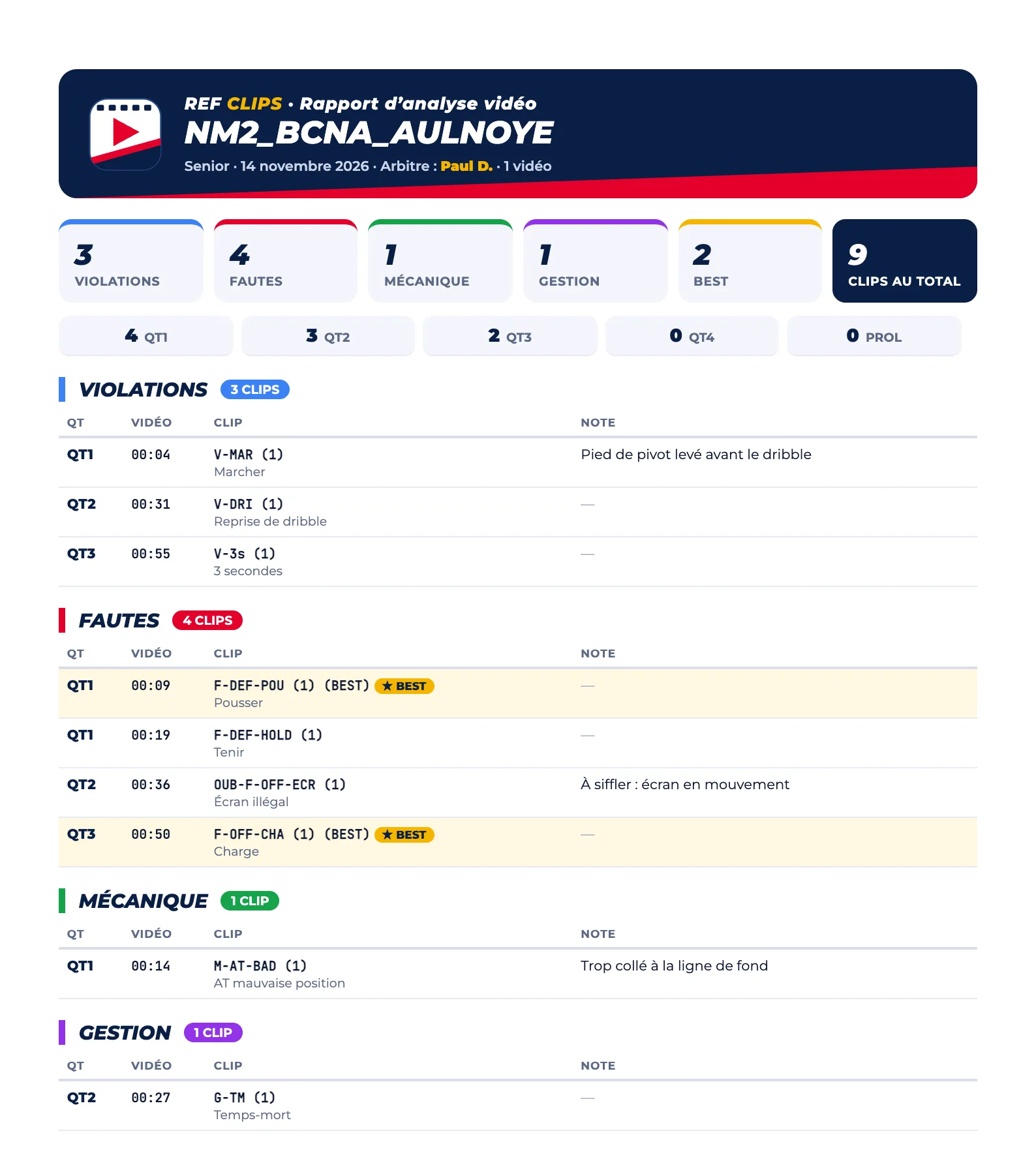
Keep your habits: the game video and your referee’s eye. REF CLIPS does the cutting and the filing.
Sign in with your Referee Tracker account: your games are already there. Add the video, a file or a Drive, Dropbox or WeTransfer link.
One key per play while it runs. Change a call, add a note, draw on the frame. Everything saves on its own.
One click: clips cut to the second, sorted by theme, with a PDF report ready for your referee coach.
This is exactly what happens in the app: a few letters, Enter, and the clip is filed.
In the app, the clip is cut around the moment you typed the call. Adjust start and end with one key.
Type the start of a call or click a theme. The clip is created around the play, in the right quarter.
Your 9 favourite calls on keys 1 to 9. Your finest moments as BEST, gathered apart.
Arrows, circles, lines and text in bright colours, frozen for 3 seconds in the exported clip.
Cut to the second, in original quality or a light version for sharing.
With every export: calls by theme and by quarter, BEST, notes. Ready for your coach.
Full-screen video on one side, the calls on the other. With one screen, a floating window.
Google Drive, Dropbox, OneDrive, WeTransfer or a direct link: paste it, REF CLIPS downloads it.
Your name, level and games are already there. No form to fill in.
REF CLIPS is in early access: the first time, your computer may show a security message. That’s normal, here is what to do.
The REF CLIPS.dmg file, then open it.
Drag the REF CLIPS icon into the Applications folder.
If the Mac refuses: System Settings › Privacy & Security, then “Open Anyway”. Only once.
macOS 12 or later · Intel and Apple silicon Macs
The REF CLIPS Setup.exe file, then open it.
If Windows shows “Windows protected your PC”: “More info”, then “Run anyway”.
It installs on its own. REF CLIPS appears on your desktop.
Windows 10 and 11 · 64-bit
Yes, during early access, for every referee with a Referee Tracker account.
No. Your videos, clips, notes and reports stay on your computer. If you agree, REF CLIPS only sends usage statistics to improve. Details in the privacy policy (in French).
MP4, MOV, MTS, AVI and other camera and phone formats, up to 4K, in one or several files. Google Drive, Dropbox, OneDrive, WeTransfer and direct links too. YouTube does not allow downloads: ask the club for the file.
Only to sign in and to fetch a video from a link. Analysis and export work offline.
Choose “3 referees” in the settings: the Centre calls and the triple whistle appear. You can also mark which referee each clip is about.
In REF CLIPS, open ⋯ › Report a problem: your message goes straight to the team.
Download REF CLIPS and sign in with your Referee Tracker account. No account yet? It takes two minutes.
Download REF CLIPS Create my Referee Tracker account